How to design a TRIAL ?
Prerequisites
- Have familiarized with TRIAL mode through the General Presentation section.
- Have subscribed to a Contextual TRIAL mode offer and obtained your ID/password.
- Have Experimenter privileges.
Let's design my trial !
- Step 1: Access the Trial section, and click "Create new trial". A pop-up appears where you choose a name and set the start and end dates. You can also duplicate an existing trial. Once created, the trial appears with the status Preparing. In this state, it can be edited freely and is not yet available to participants.
ℹ️ Start date defines the beginning of your trial schedule and sets the start of the event calendar that will be planned within the trial. Choose it carefully. The time of the selected start date is assumed to be 00:00 .
- Step 2: In the [Schedule] tab, you can add, edit, and schedule sequences. Click "New Sequence" to create one or edit an existing sequence.You can also duplicate an existing sequence.
ℹ️ A sequence is a set of actions performed by participants. To launch a trial, at least one planned sequence is required. Choose its name carefully, as it will be displayed in the participants’ schedule.
- Step 3: Edit your sequence by adding at least one action.
ℹ️ An action is a step within a sequence that the participant will perform. It can be either a question or a measurement. When there are multiple actions, you can organize them by dragging and dropping the tiles.
You can add the following actions:

New Question: ask anything, either as a multiple-choice question (where you specify the possible answers) or as an open-ended question.
New Measure: Adding a measure means specifying a sensor setup. Select the sensor that the participant will use and configure all its parameters. For more information about the sensor setup fields, refer to the sensor descriptions in the Sensors section. Additionally, you can upload a PDF document, which will be displayed in the participant’s mobile app during the measurement. For example, this could be a PDF with detailed information about the sensor or your measurement protocol.

New Indication: Use an indication to give instructions, information, or a brief introduction to the sequence. For example, if you want to add a few words of context before the sequence, choosing an indication is the right option.

New Photo: This action prompts the subject to take a photo. You can include instructions to guide them (e.g., “take a picture of the arm area where you placed the sensor during the test”).
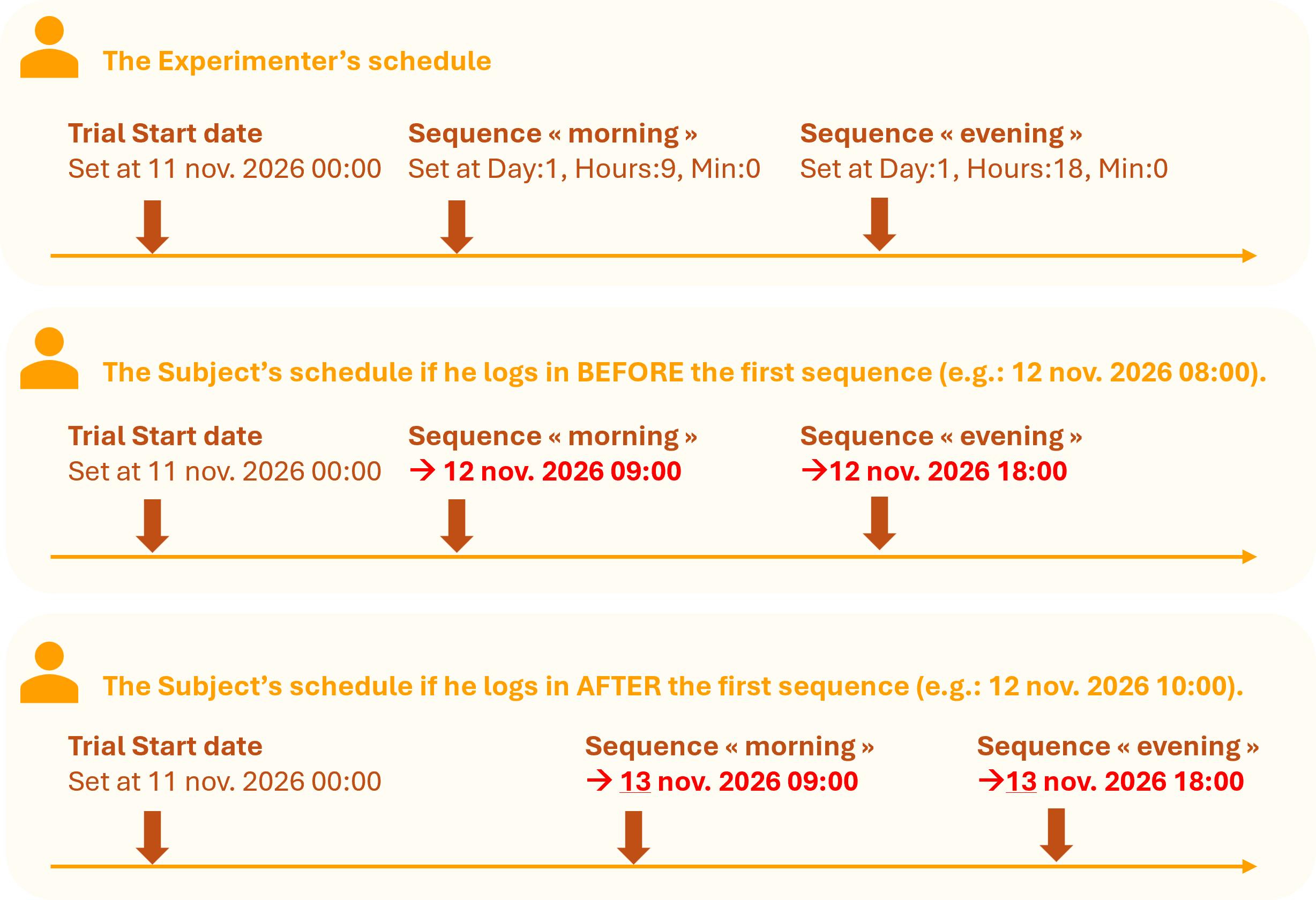
- Step 4: Return to the [Schedule] tab to plan your sequences. Click the left arrow on a sequence’s tile or duplicate an existing planned event. You will be prompted to set the number of days, hours, and minutes that determine the start and end of the sequence’s availability (if needed, you can make a sequence available for the entire day). These values represent a time offset relative to the trial’s Start date (defined when the trial was created). Example: If the trial Start date is Monday, setting Start = 1 day, 9 hours, 0 minutes and End = 2 days, 11 hours, 0 minutes means the sequence will be available from Tuesday at 9:00 AM to Wednesday at 11:00 AM.
⚠️ Caution :
If a participant logs into the trial after the availability period of the first planned sequence, that sequence will be scheduled for the following day , and all subsequent sequences will be delayed accordingly.
ℹ️ Push notification notify the subject on their smartphone when a new sequence is available.
- Step 5: Click the [Participants] tab and add at least one subject to your trial. On the right, you can view the subjects already created and associated with your Contextual Instruments environment. To add a new one, click "New Participant" and specify a username and password. Then, click the left arrow on the participant’s tile to include them in your campaign.
ℹ️ A participant is considered part of the trial only if they appear in the "Assigned Users" area.
⚠️ Caution :
The experimenter must send each subject their credentials .
- Step 6: So far, the trial is in the Preparing status. Go back to the [General] tab and click the Start Collection button. The trial then switches to the Collecting Data status and becomes available to the participants assigned to the trial.
ℹ️ Push notification notify the subject on their smartphone when a trial they are assigned to enters the "Collecting Data" state. Note that if a subject is added to a trial that is already in the "Collecting Data" state, they will also receive a push notification.
ℹ️ Back to Preparing mode: if no results have yet been assigned to the trial, the experimenter can return to Preparing mode even after switching to Collecting Data . This allows them to make changes if needed. However, once results have been assigned to the trial, this action is no longer possible.